SharePoint: Hide or Show Form Columns Using Content Types and JSON
Overview
When you need to conditionally hide or show fields in a SharePoint list or library form, there are two common approaches: enable content types or use JSON form customization. This post explains both and shows the visibility expression used in SharePoint.
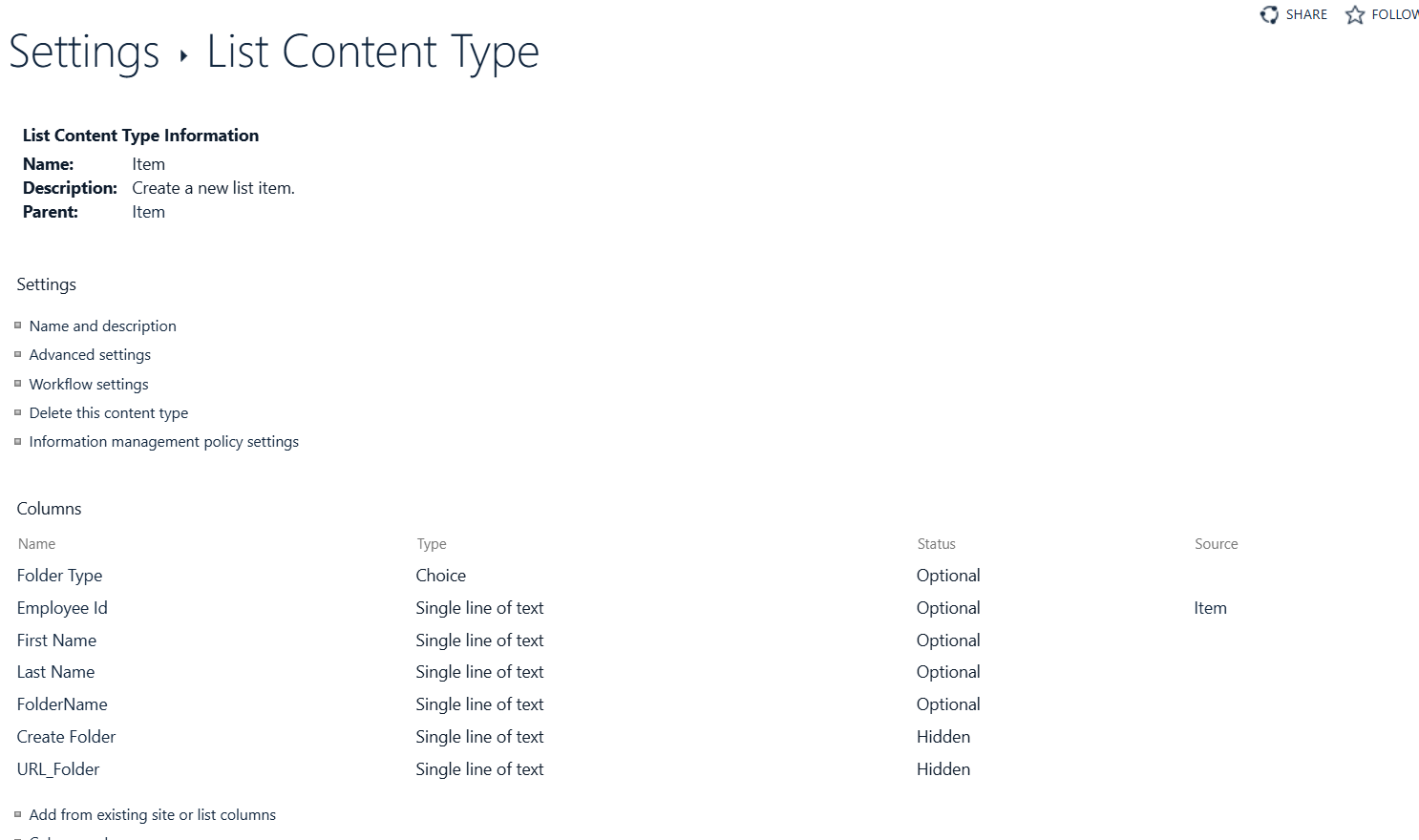
Option 1: Enable content types
Enabling content types on a list or library gives you built-in controls for:
- showing or hiding fields
- reordering columns
- managing form layout per content type
This is a good fit when your list or library uses multiple content types and you want form behavior to vary by type.
Option 2: Use JSON form customization
If you want to apply conditional visibility directly in the form, use JSON customization.
Steps
- Open the target list or library.
- For a list: open an item and view the item details form.
- For a document library: select a file and open the information pane.
- In the pane, choose
Edit all. - At the top of the form, select
Edit form>Edit columns.

Example visibility rule
Use a JSON visibility expression like this:
=if([$FolderType] == 'Other', 'false', 'true')
This expression hides the field when FolderType is Other and shows it otherwise.
Example result
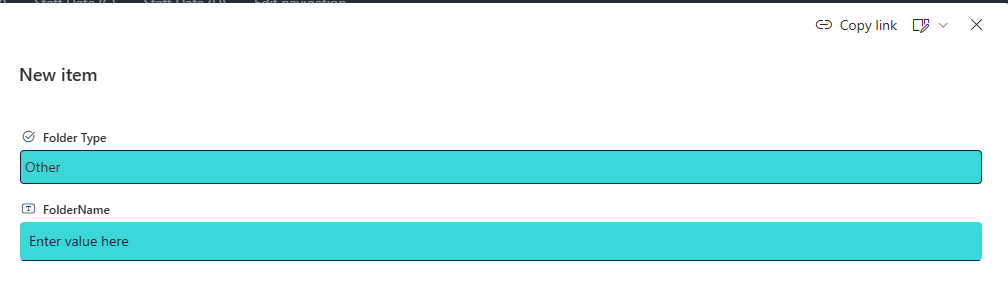
When any value from other is selected.
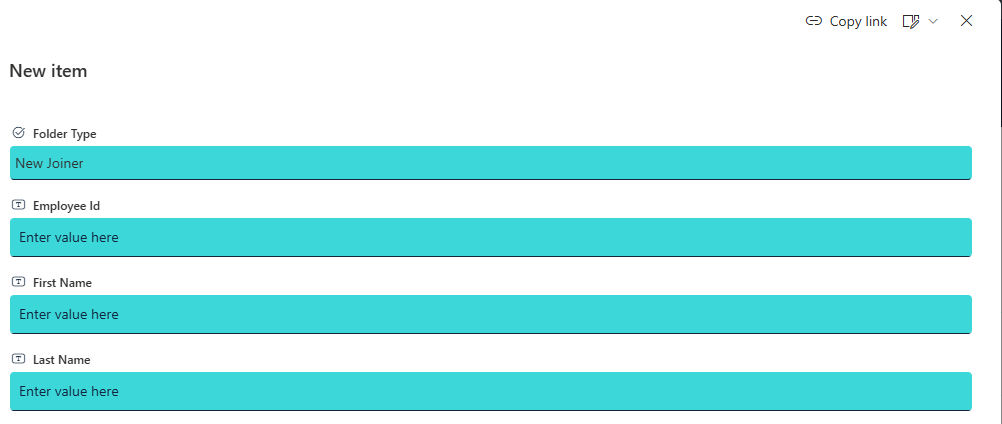
When ‘Other’ is selected