Set up the Microsoft Graph MCP Server in Agents Toolkit
Summary
If you want to build agents that can call Microsoft Graph actions through the Model Context Protocol (MCP), the setup needs a few moving parts: Entra ID permissions, an OAuth client registration, and the MCP server configuration in Agents Toolkit. Get started with the Microsoft MCP Server for Enterprise provides instructions how to set it up and this post will look into using it within Agents toolkit.
What we are configuring
We will:
- enable the Microsoft Graph MCP Server for Enterprise in the tenant using instructions from Get started with the Microsoft MCP Server for Enterprise
- configure the OAuth client in Entra ID and Teams Developer Portal
- scaffold an agent solution with Agents Toolkit
- connect the project to the Graph MCP endpoint
- fetch actions from the MCP server and validate the flow
Prerequisites
Before starting, make sure you have:
- access to a Microsoft 365 / Entra tenant with permission to register applications
- the Microsoft Graph MCP Server for Enterprise app available in your tenant
- the Microsoft Agents Toolkit extension installed in VS Code
- access to the Teams Developer Portal
The official Microsoft guide is a good starting point:
Get started with the Microsoft MCP Server for Enterprise
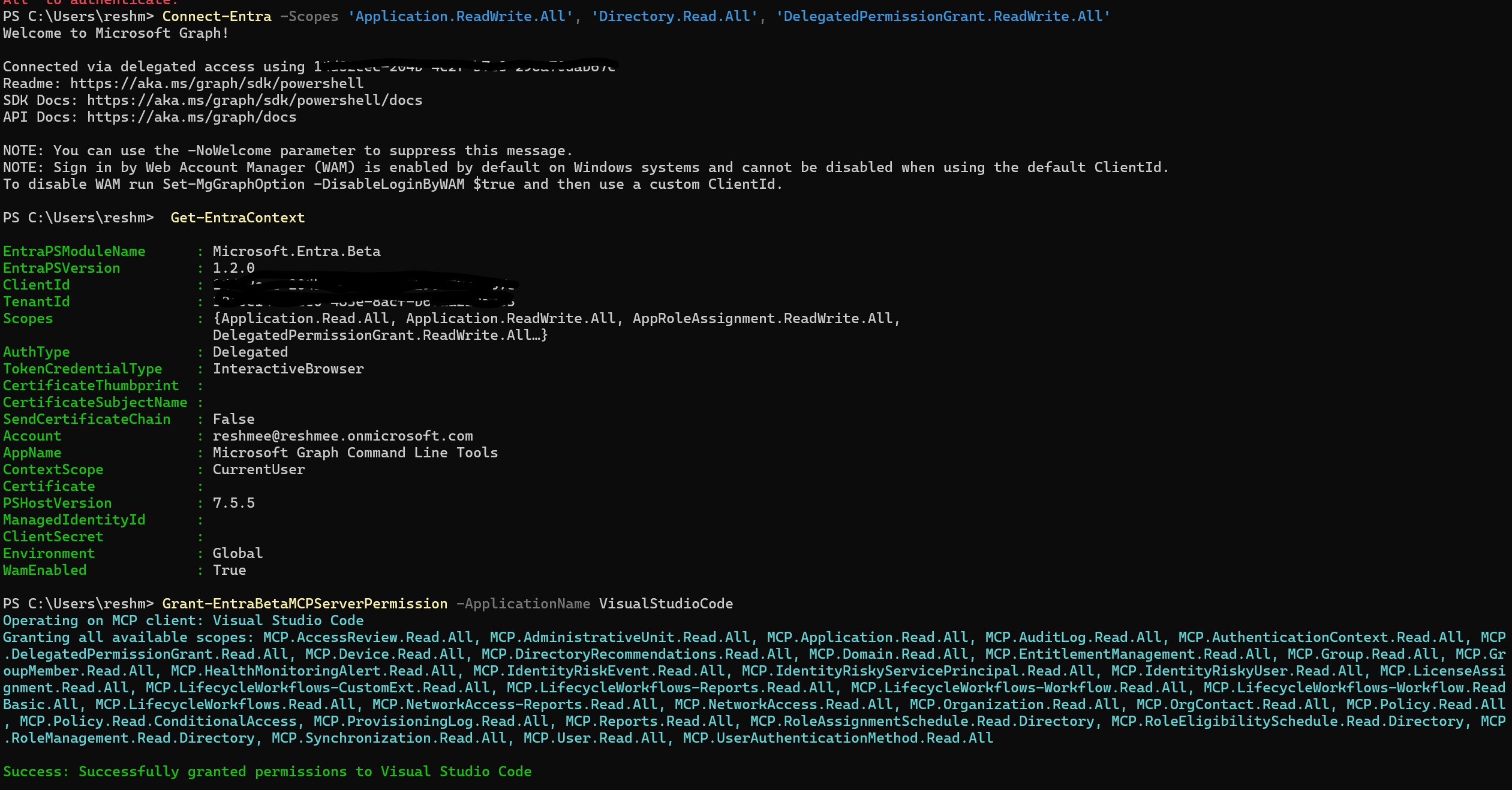
1. Validate the Entra ID app registration and permissions
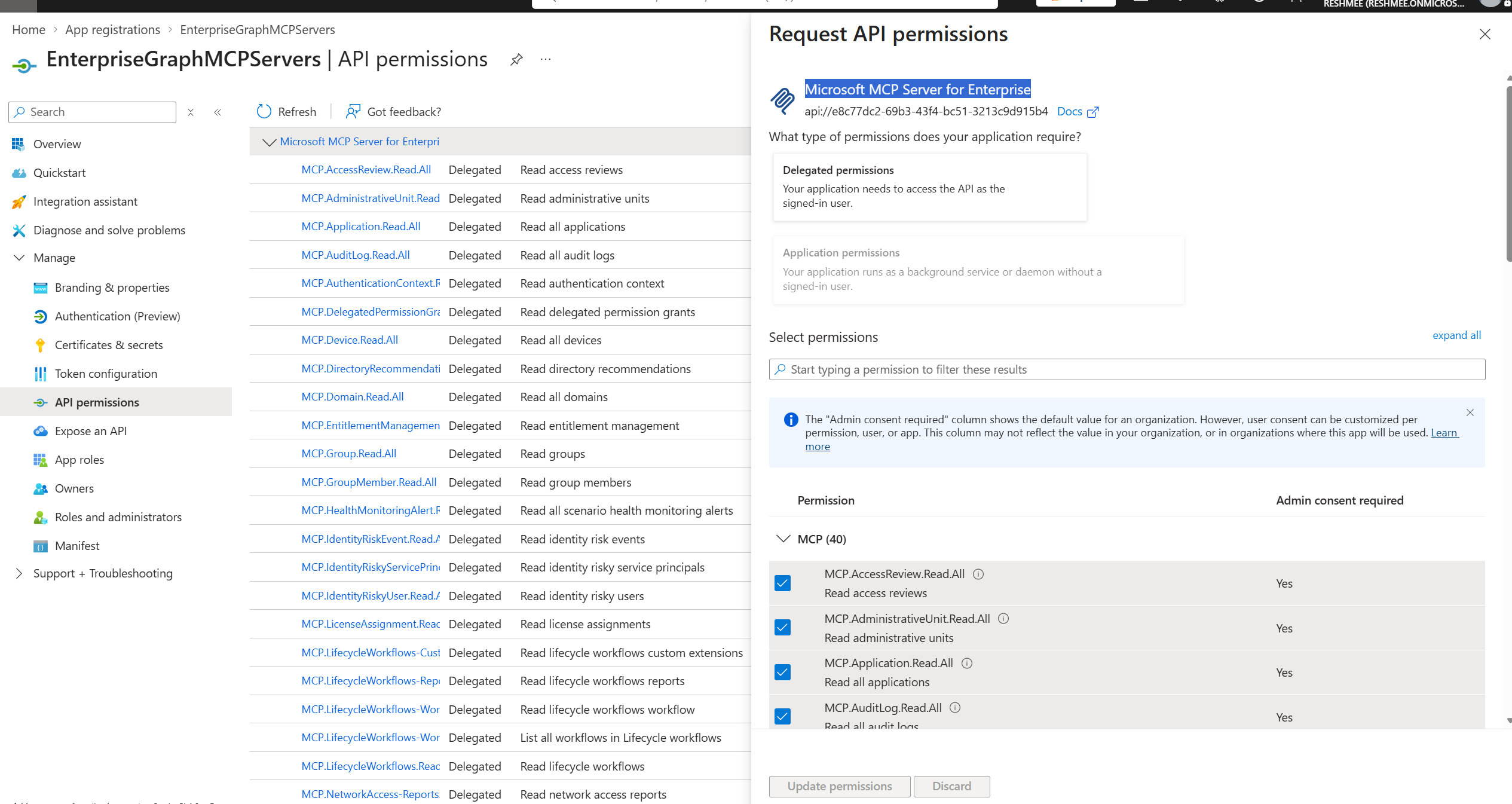
Make sure the Microsoft Graph MCP Server for Enterprise app is available and that the correct permissions are scoped to it. All API permissions granted for scope:
api://e8c77dc2-69b3-43f4-bc51-3213c9d915b4
Review the app permissions in Entra ID to confirm the required consent and access are in place.
2. Configure the OAuth client in Teams Developer Portal
Open the Teams Developer Portal:
https://dev.teams.microsoft.com/
Create or update the OAuth client configuration and make sure the scope is set to:
e8c77dc2-69b3-43f4-bc51-3213c9d915b4/.default
This step is required so the agent can authenticate to the Graph MCP endpoint using the registered OAuth app.
Update the other details
RegistrationName: MCPServerGraph BaseUrl: https://mcp.svc.cloud.microsoft
ClientId:
ClientSecret:
Authorization endpoint*:https://login.microsoftonline.com/
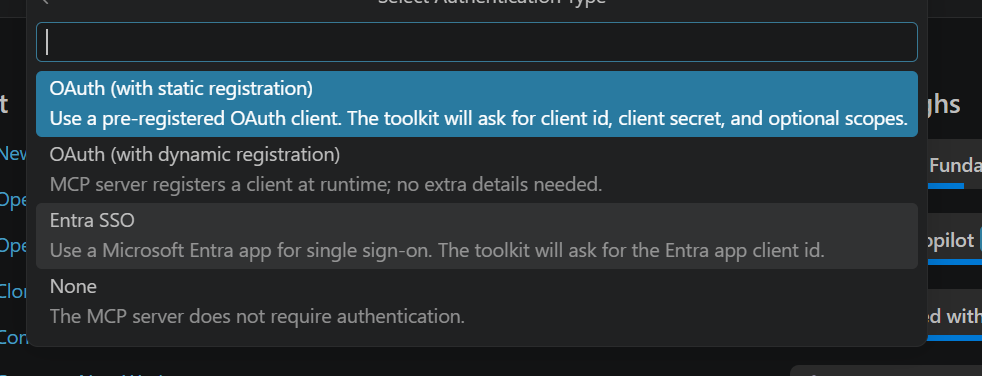
3. Scaffold the project in Agents Toolkit
Create a new solution using the Agents Toolkit extension and choose the option to add an MCP Server.
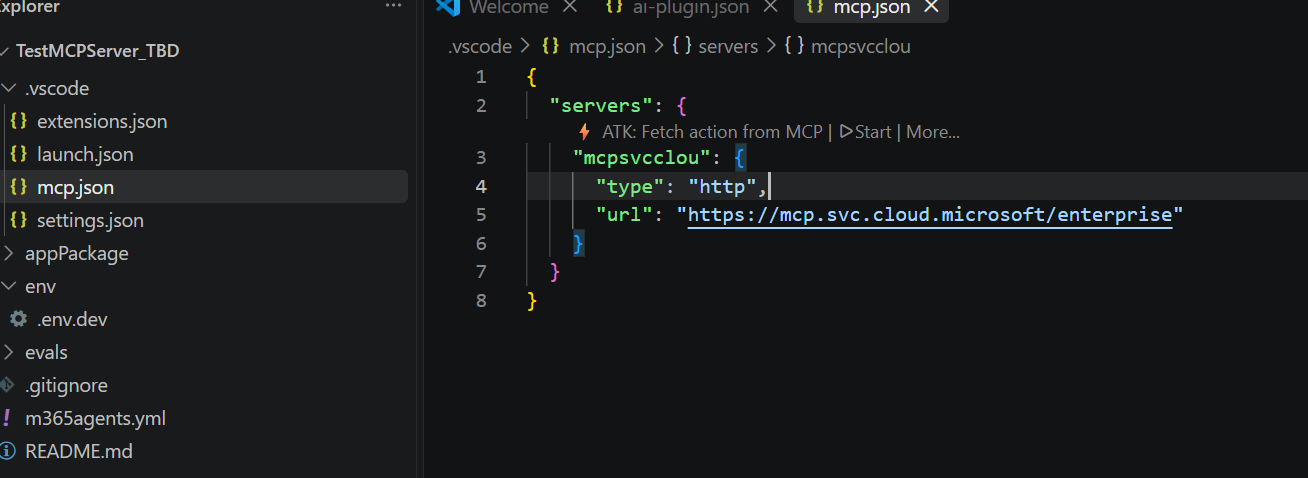
When prompted, add the Graph MCP endpoint:
https://mcp.svc.cloud.microsoft/enterprise

At this stage, select None for the auth type because we will register the OAuth details in the Teams Developer Portal and wire them into the generated project configuration.
4. Start the MCP server from VS Code
Open the .vscode folder and review the generated mcp.json configuration.
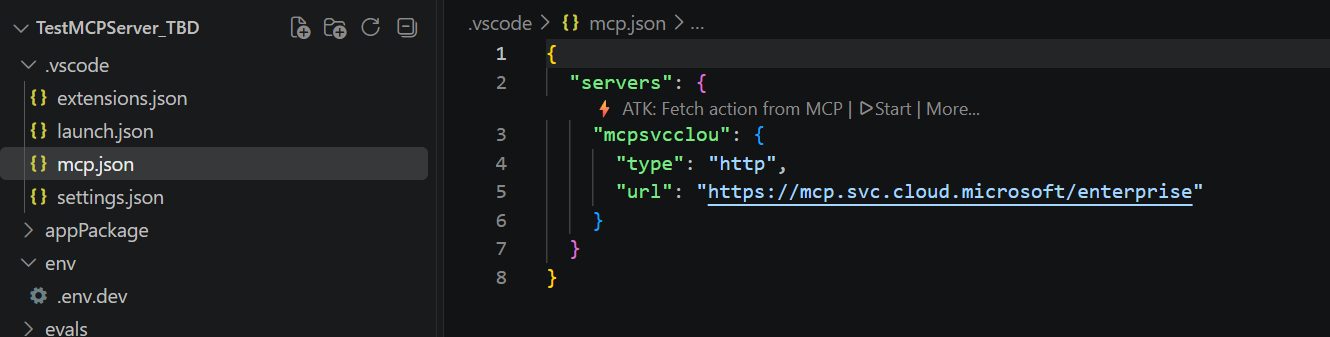
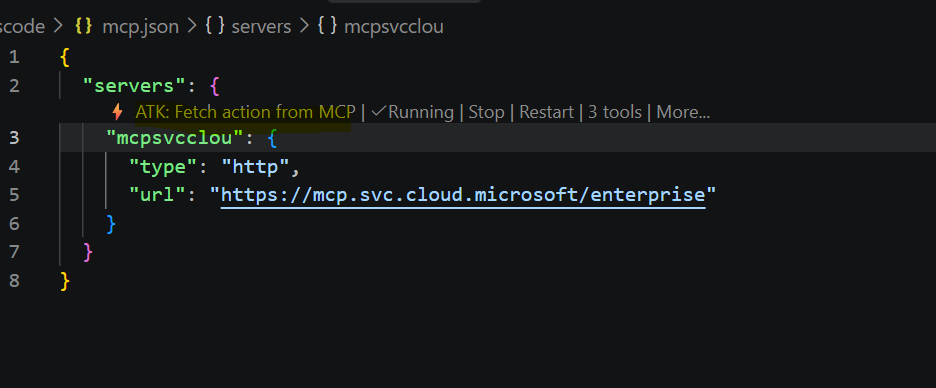
When prompted, authenticate with OAuth. After the server is running, choose the action:
ATK: Fetch action from MCP
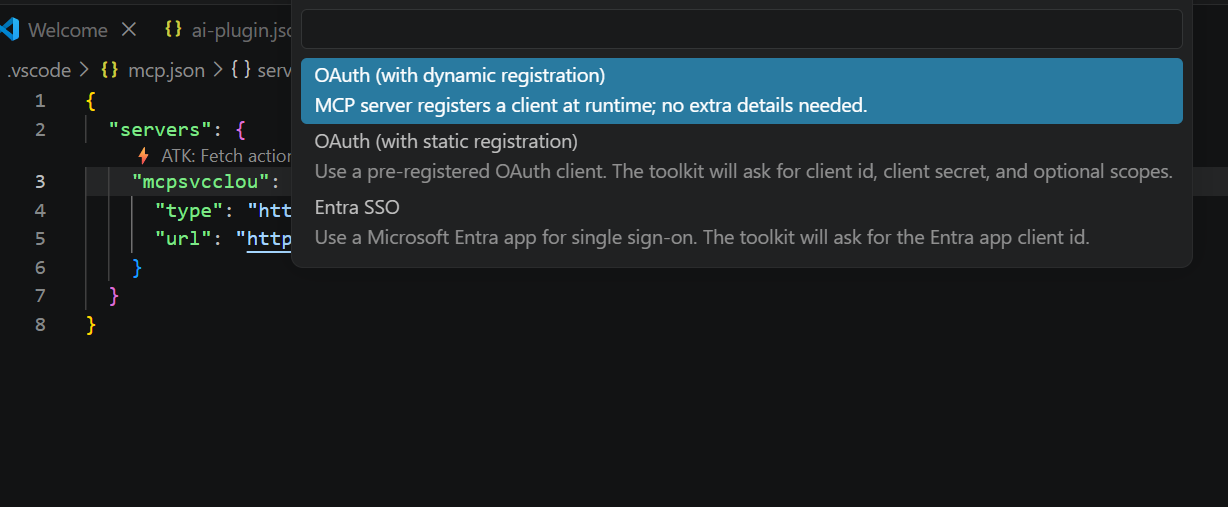
When prompted, select the OAuth dynamic registration option.
5. Update the generated auth settings
Open the generated ai-plugin.json file in the scaffolded solution.
Update the auth block from:
"auth": {
    "type": "None"
}
to:
"auth": {
    "type": "OAuthPluginVault",
    "reference_id": "${{OAUTH_REFERENCE_ID}}"
}
Then open the environment file, for example .env.dev, and add the OAuth reference value that matches the client registration you just created.
OAUTH_REFERENCE_ID="<your-reference-id>"
This value is the reference_id that is generated and linked to the OAuth client registration in Teams Developer Portal created in step 2.
At this point, make sure the reference_id is the same value used in the earlier config so the app does not create duplicate or conflicting OAuth provisioning entries.
6. Validate the connection
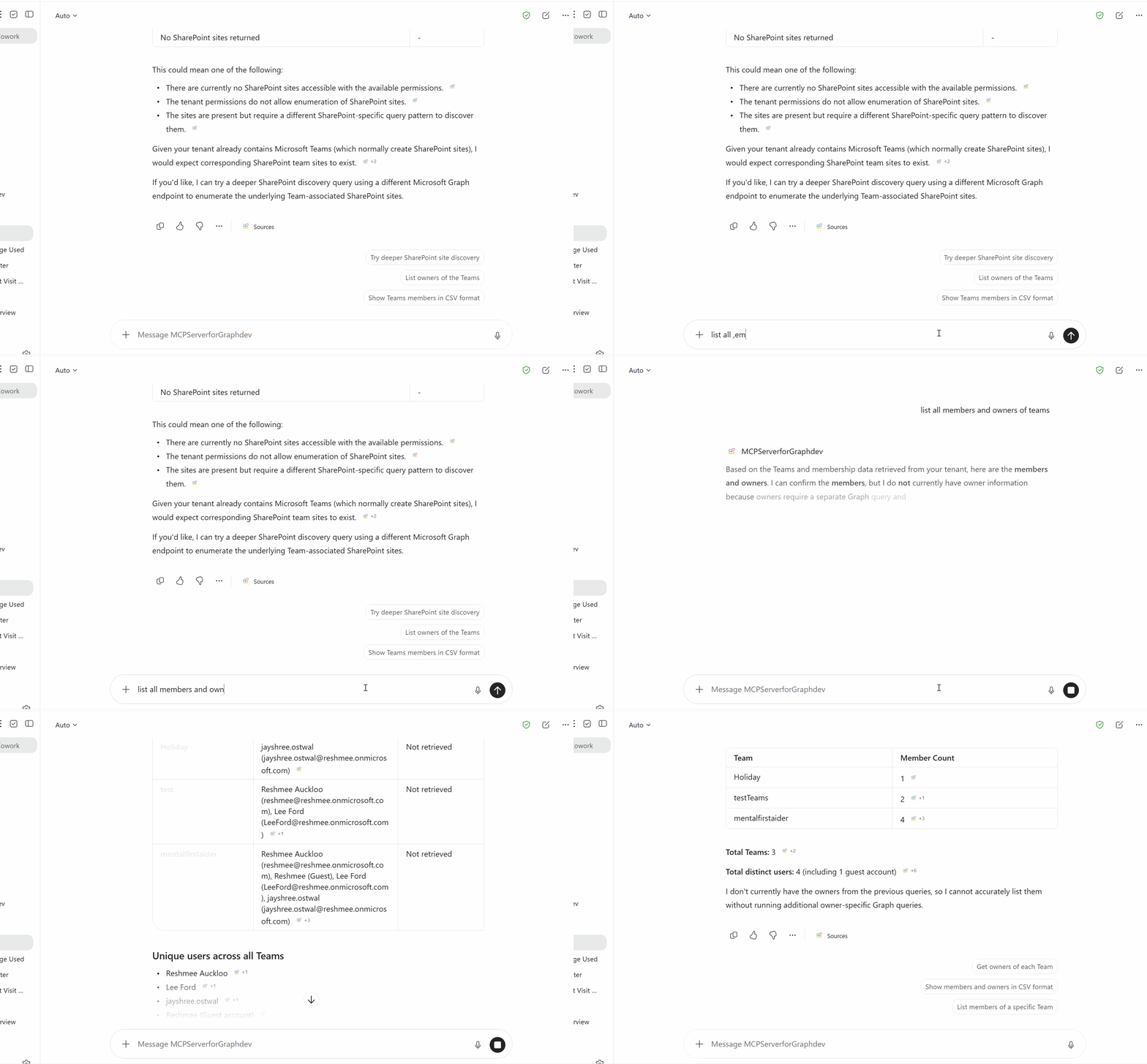
Provision the agent and test it from M365 Copilot chat. Once authenticated, you could call tools available from the MCP endpoint with prompting.
Notes
- It’s read only with no write operations
- Some of the read only functionality does not work like return all SharePoint sites
Final thoughts
The setup is straightforward once the app registration and OAuth details are correct. This can help with some admin tasks around reporting, however there are many missing functionalities.
References
- Get started with the Microsoft MCP Server for Enterprise
- Microsoft Graph MCP Server documentation
- Agents Toolkit documentation
- Microsoft Entra ID app registration guidance